Creating Cosmetics with Nexo
This guide is for creating cosmetics using the Nexo plugin.
Hat
yaml
# Example YAML configuration for creating a hat with Nexo.
cosmetics:
  mexican_hat:
    permission: 'cosmetics.mexican_hat' # permission to use the hat
    item:
      display: '&bMexican Hat'
      nexo: 'mex_hat' # ID of the hat item from Nexo
      lore:
        - ''
        - '&6Very Mexican!'
      unbreakable: true # item is unbreakable
      glow: false # no glow effect
      hide-attributes: true # hides item attributes
      modeldata: -1 # model data is not required here (managed by Nexo)
    colored: true # the hat can be colored
    type: HAT # cosmetic type: hat
    overlaps: true # If this option is enabled, you can wear a helmet and a hat at the same time.
Backpack
Here is how a regular backpack is created:
- Cosmetic file:
yaml
# Example YAML configuration for creating a regular backpack with Nexo.
cosmetics:
  creeper_backpack:
    permission: 'cosmetics.creeper_backpack' # permission to use the backpack
    item:
      display: '&bCreeper Backpack'
      nexo: 'backpack' # ID of the backpack item from Nexo that everyone will see.
      lore:
        - ''
        - '&aSupport the creepers!'
      unbreakable: true
      glow: false
      hide-attributes: true
      modeldata: -1 # model data is not required here.
    colored: true # the backpack can be colored
    type: BAG # cosmetic type: backpack
distance: 100 # the distance at which players can see the backpack.- BlockBench file:
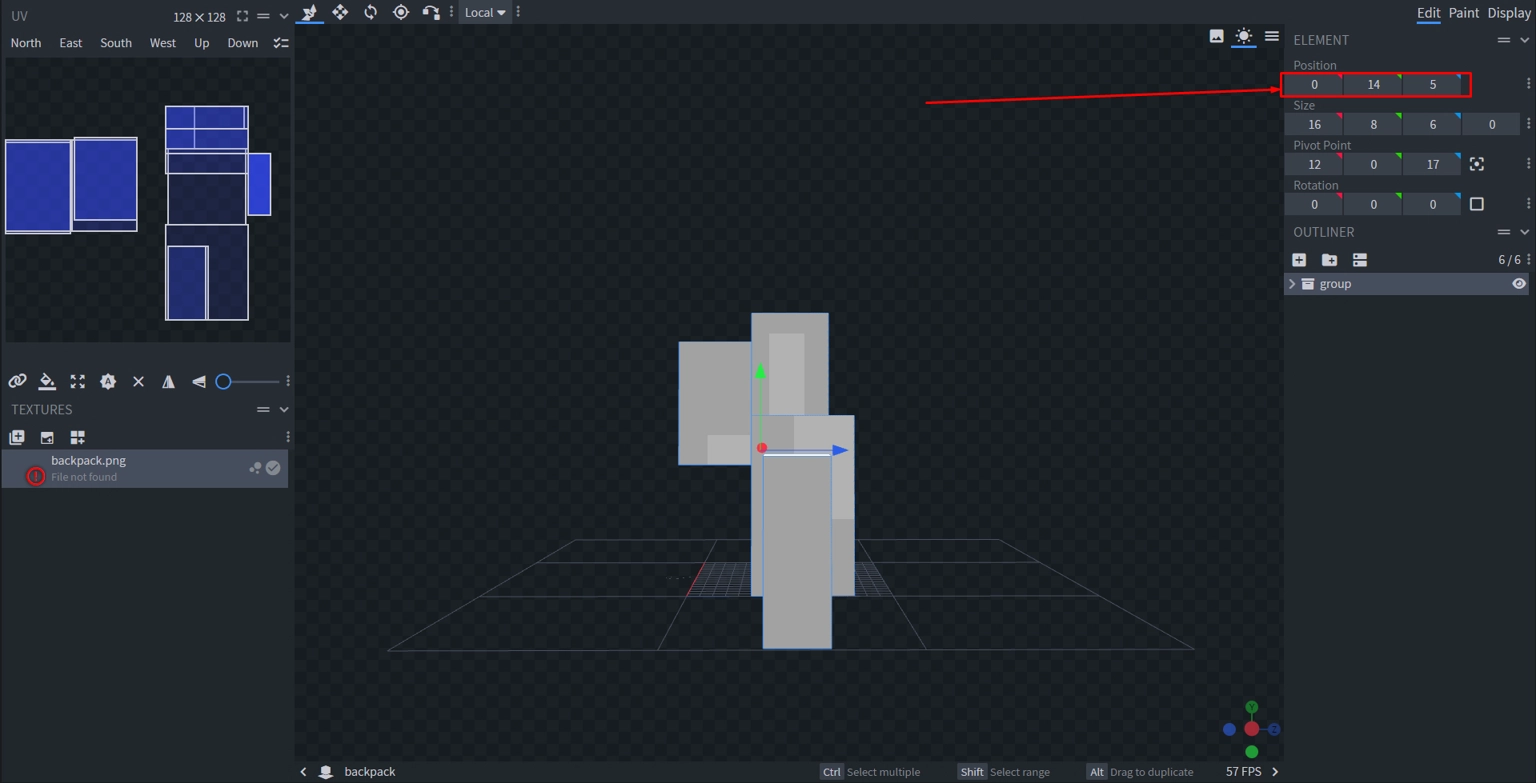
And here is how a first-person backpack is created:
- Cosmetic file:
yaml
# Example YAML configuration for creating a first-person backpack with Nexo.
cosmetics:
  creeper_backpack:
    permission: 'cosmetics.creeper_backpack'
    item:
      display: '&bCreeper Backpack'
      nexo: 'backpack' # ID of the backpack item from Nexo that everyone will see.
      lore:
        - ''
        - '&aSupport the creepers!'
      unbreakable: true
      glow: false
      hide-attributes: true
      modeldata: -1 # model data is not required here.
      for-me: 'nexo;backpack_self' # nexo;<id> - If this option is set, this item or model data will be displayed for the player using it, while others will see the already set one. Remember, this option can use either a number (modeldata) or an ID (Nexo).
    colored: true
    type: BAG
    distance: 100 # the distance at which players can see the backpack.
height: 3 # this is the height at which the backpack item will be set for the player themselves.- BlockBench file:
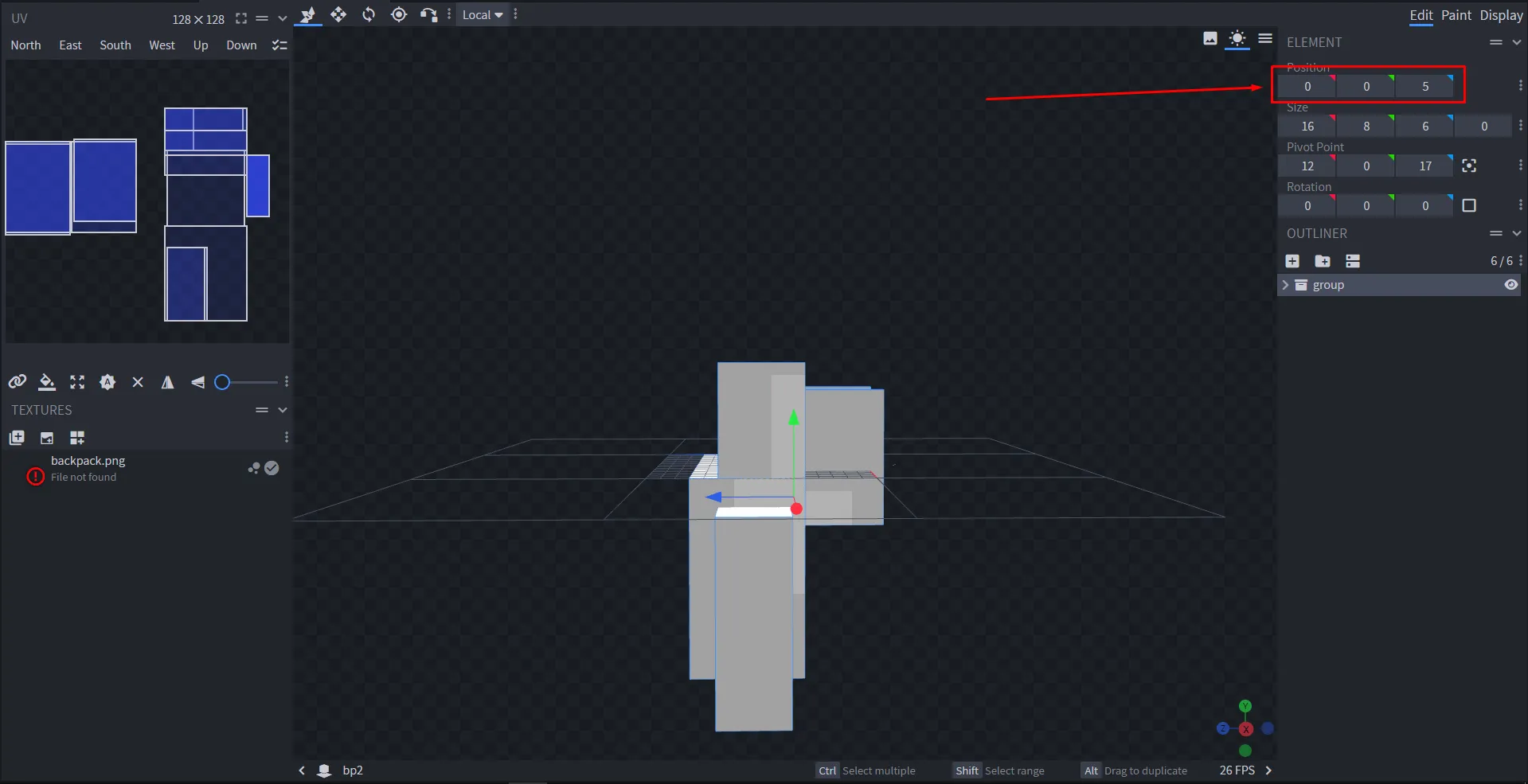
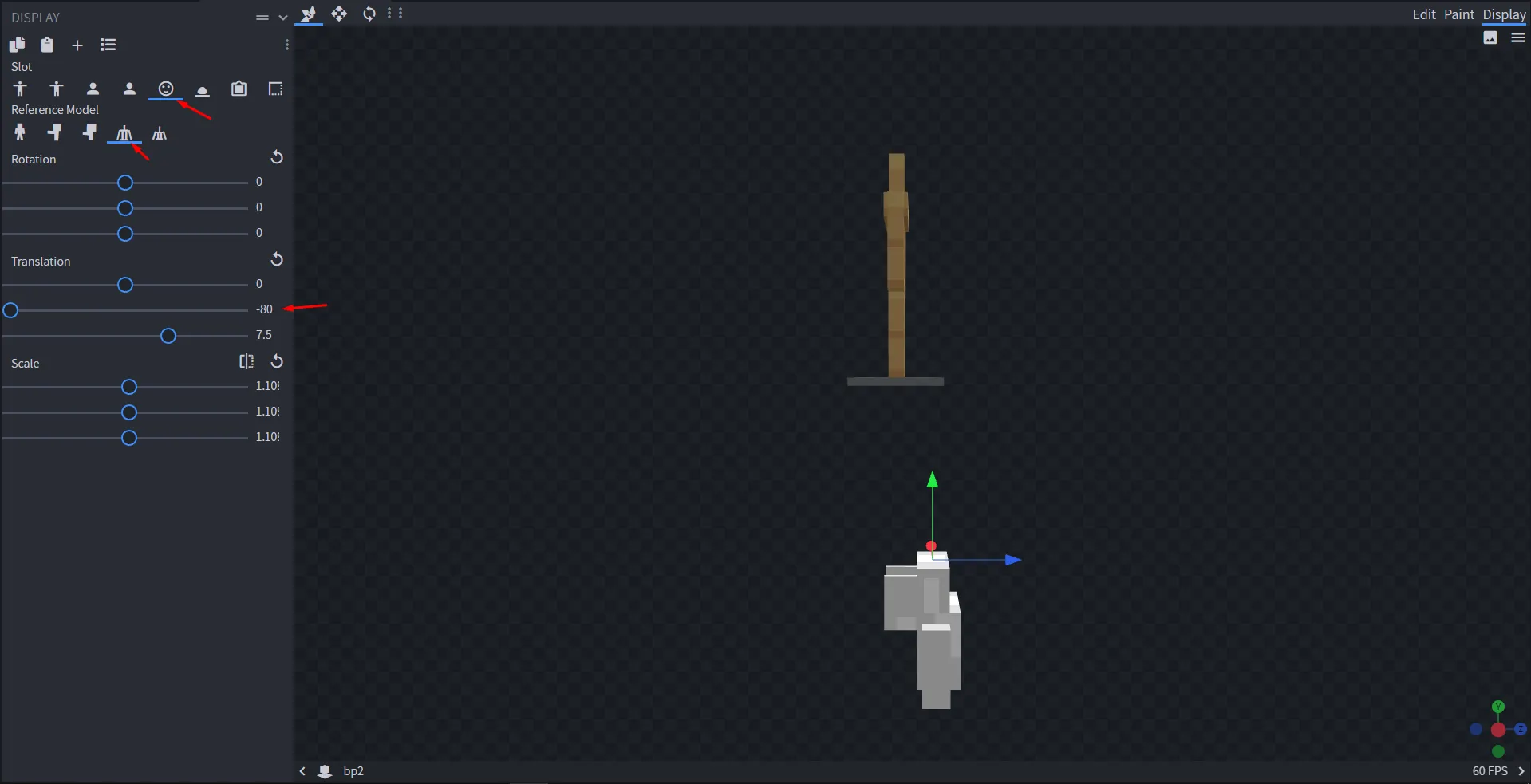
Finally, there is one last option for the backpack:
yaml
space: 30 # if the player's view direction exceeds this number, the backpack will disappear, and if not, it will be visible again (only affects the player wearing the backpack, for others the backpack will remain in place). If you do not want the backpack to disappear, remove this parameter or set it to 0.```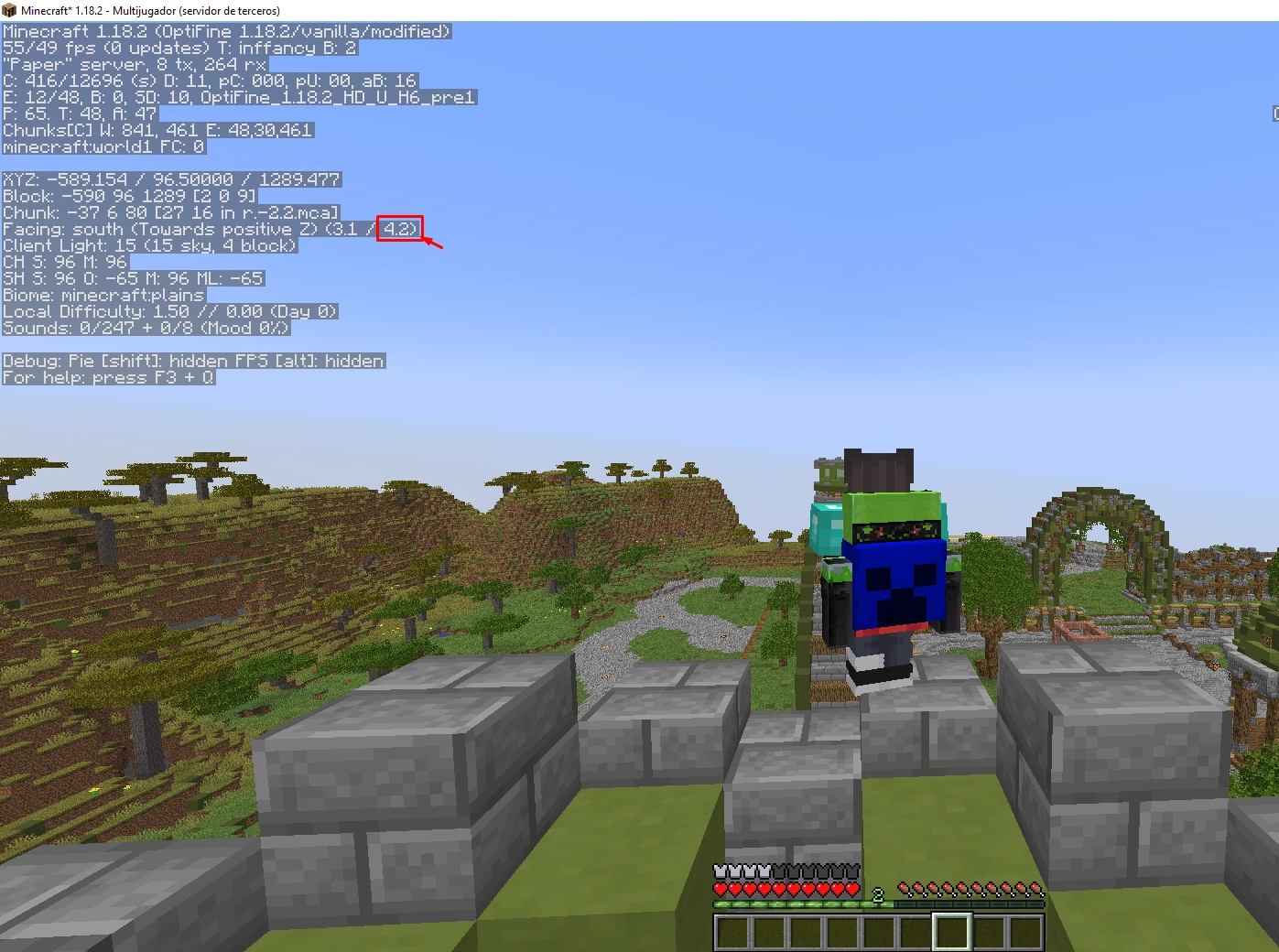
Off Hand
Creating a cosmetic for the off-hand is as simple as creating a hat. Here is an example:
yaml
# Example YAML configuration for creating an off-hand cosmetic with Nexo.
cosmetics:
  magic_off_hand:
    permission: 'cosmetics.magic_offhand' # permission to use the off-hand cosmetic
    item:
      display: '&bMagic Off-Hand'
      nexo: 'magic_offhand' # ID of the off-hand item from Nexo
      lore:
        - ''
        - '&6Very magical!'
      unbreakable: true
      glow: false
      hide-attributes: true
      modeldata: -1 # model data is not required here.
    colored: true # the cosmetic can be colored
    type: WALKING_STICK # cosmetic type (using WALKING_STICK relates to the plugin's mechanics)
    overlaps: true # If this option is enabled, you can use an item in your off-hand and the off-hand cosmetic at the same time.
Balloon
Let's start with a balloon with Nexo support:
- Cosmetic file:
yaml
# Example YAML configuration for creating a balloon with Nexo.
cosmetics:
  balloon:
    permission: 'cosmetics.balloon' # permission to use the balloon
    item:
      display: '&bBalloon'
      nexo: 'balloon' # ID of the balloon item from Nexo
      lore:
        - ''
        - '&aThis balloon will float in the sky!'
      unbreakable: true
      glow: false
      hide-attributes: true
      modeldata: -1 # model data is not required here.
    colored: true # the balloon can be colored
    type: BALLOON # cosmetic type: balloon
    space: 1 # here you can increase/decrease the balloon's height
    big-head: false # This option changes the position of the balloon item from the head to the right hand.
    distance: 100 # the distance at which players can see the cosmetic.
    invisible-leash: false # If this option is active, the balloon's string will not be visible.
    instant-follow: true # The balloon will follow you faster and almost instantly.
    rotation: # If you are not going to use this, you can remove the option
      enabled: false # choose if this balloon can rotate.
type: RIGHT # RIGHT, UP, ALL (crazy rotation).- BlockBench file for the balloon:
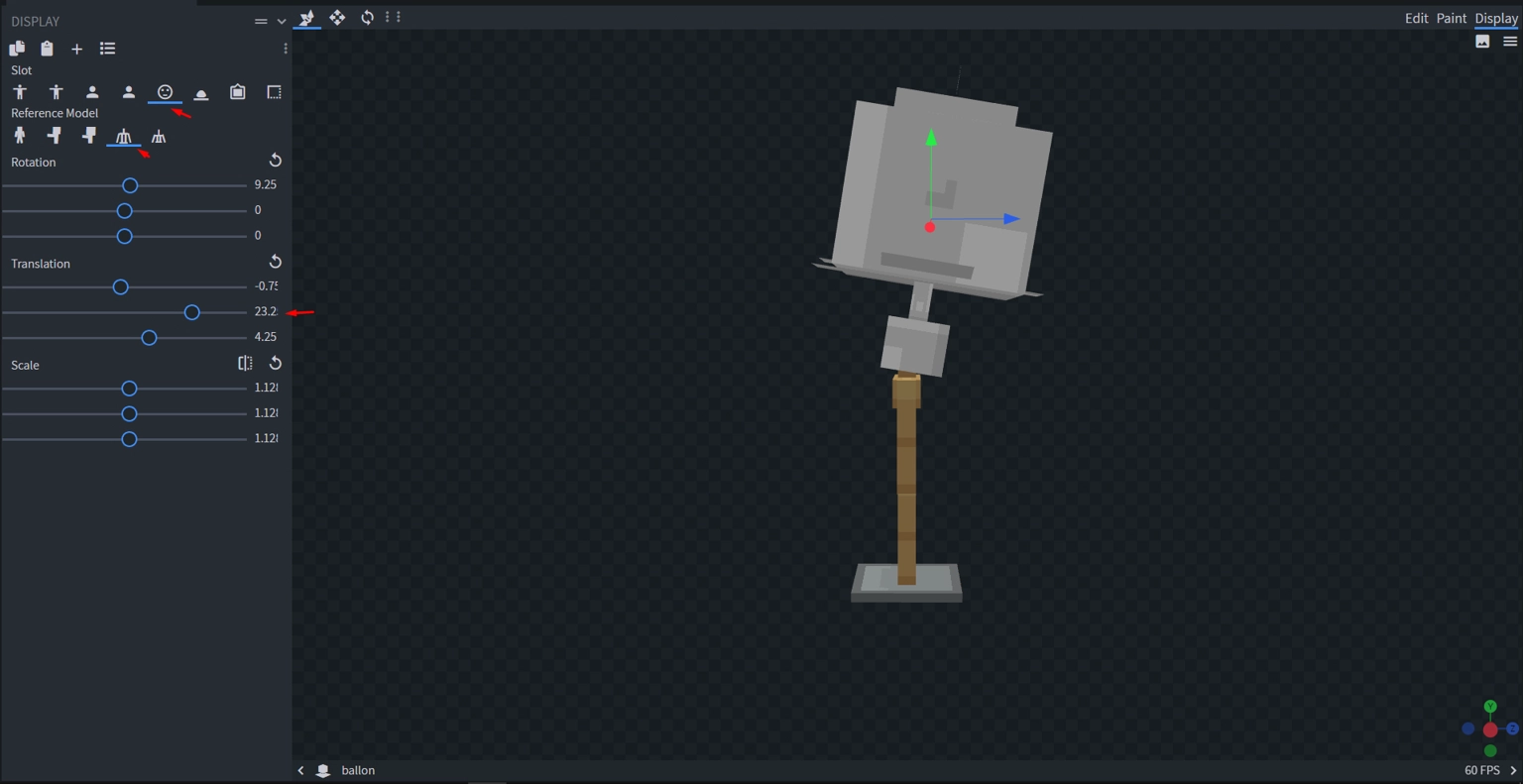
Now let's create a balloon with ModelEngine implementation (although this is a Nexo guide, it's sometimes useful to show alternatives):
yaml
# Example YAML configuration for a balloon with ModelEngine support.
cosmetics:
  balloon:
    permission: 'cosmetics.balloon'
    item:
      display: '&bBalloon'
      nexo: 'balloon' # ID of the balloon item from Nexo
      lore:
        - ''
        - '&aThis balloon will float in the sky!'
      unbreakable: true
      glow: false
      hide-attributes: true
      modeldata: -1 # model data is not required here.
    colored: true
    type: BALLOON
    meg: # ID of the Model Engine plugin model. Attention: This will only be visible when you have the balloon equipped, meaning it will not replace the item and will not be visible in the GUI!
      model: custom-model
      colorable-parts: # this is optional; if you want all parts of the model to be colored, remove this option
        - 'partid1'
        - 'partid2'
      animations: # this option is optional; if you don't set anything, the defaults will be "walk" and "idle".
        walk: animation-walk
        idle: animation-idle
And that's all.
Finally, let's create a balloon using a Nexo item:
yaml
# Example YAML configuration for a Nexo balloon.
cosmetics:
  balloon:
    permission: 'cosmetics.balloon'
    item:
      display: '&bBalloon'
      nexo: 'balloon' # ID of the balloon item from Nexo
      lore:
        - ''
        - '&aThis balloon will float in the sky!'
      unbreakable: true
      glow: false
      hide-attributes: true
      modeldata: -1 # model data is not required here.
    colored: true
    type: BALLOON
Spray
A spray is quite simple, in fact, as simple as hats.
yaml
# Example YAML configuration for creating a spray with Nexo.
cosmetics:
  spray:
    permission: 'cosmetics.spray' # permission to use the spray
    item:
      display: '&bSpray'
      nexo: 'spray_item' # ID of the spray item from Nexo
      lore:
        - ''
        - '&aThis spray is the best!'
      unbreakable: true
      glow: false
      hide-attributes: true
      modeldata: -1 # model data is not required here.
    colored: true # the spray can be colored
    type: SPRAY # cosmetic type: spray
    url: 'https://localhost/img_url.png' # there are 2 options here: you specify the image URL or enter the name of the image you have in plugins/ECosmetics/sprays/
    item-image: false # This applies to sprays that are items, not images (they don't require a url path). If this option is activated, it will use the item displayed in the menu as the image.